
How to open Copilot in sidebar on Windows, Linux and macOS (2026 Guide)
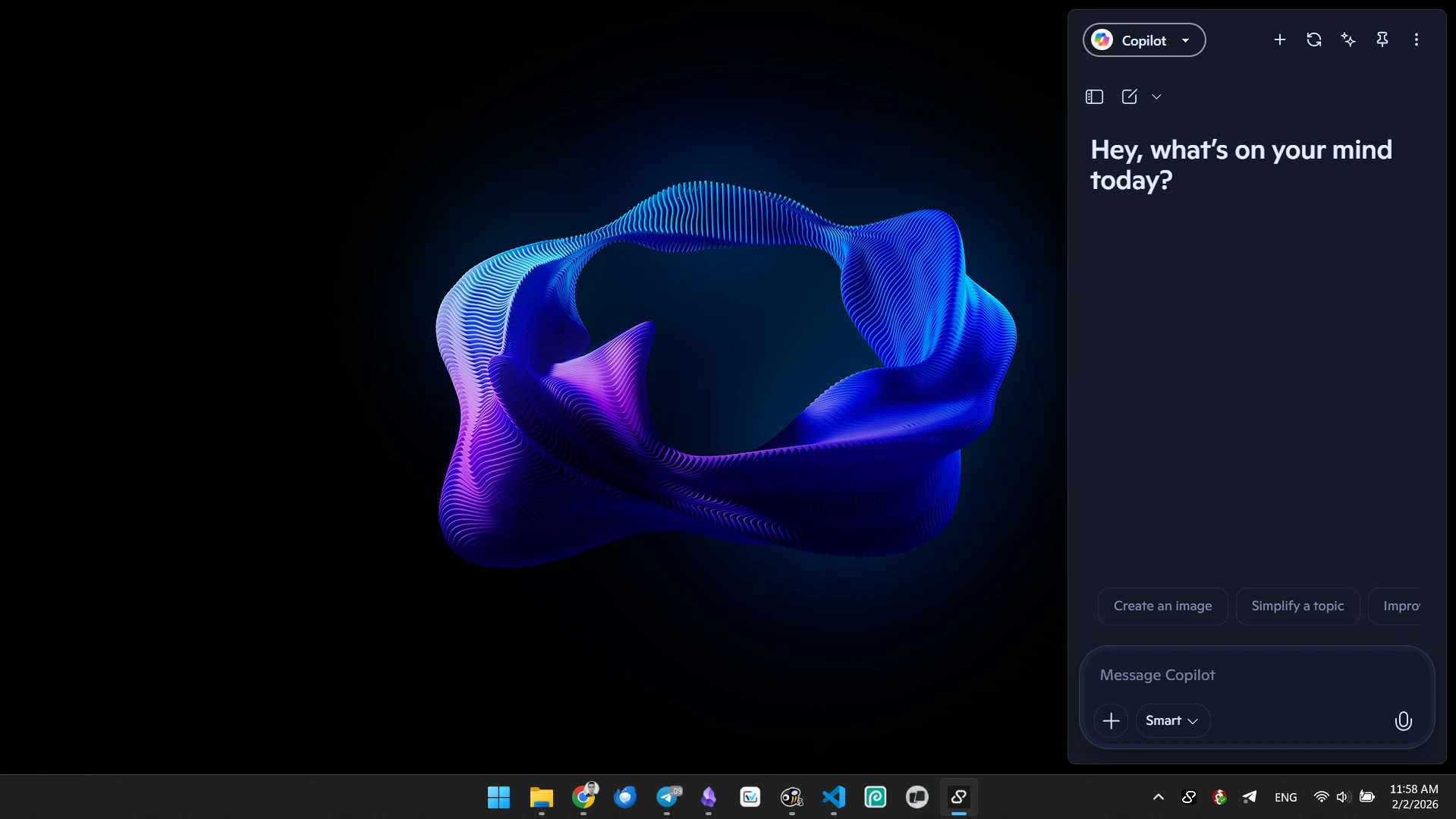
It has been months since Microsoft removed the native Copilot sidebar integration from Windows, turning it into a standalone app. For those of us who relied on having an AI assistant pinned while browsing or writing code, this change broke our productivity momentum. It is no longer a system feature; it is just another window that gets lost in your desktop clutter.
If you are looking for how to open Copilot in sidebar like you used to, the reality is that Microsoft no longer offers that native “docked” experience. However, at Sidekickbar, we have perfected the persistent sidebar experience that the OS left behind.
The problem with the standalone app
When Microsoft moved Copilot to its own app, they introduced friction. Now, every time you click another window, Copilot disappears behind it. You can’t work “side-by-side” seamlessly without manually resizing all your windows every single time. It is a clunky solution for a modern productivity problem.
How to restore the sidebar with Sidekickbar
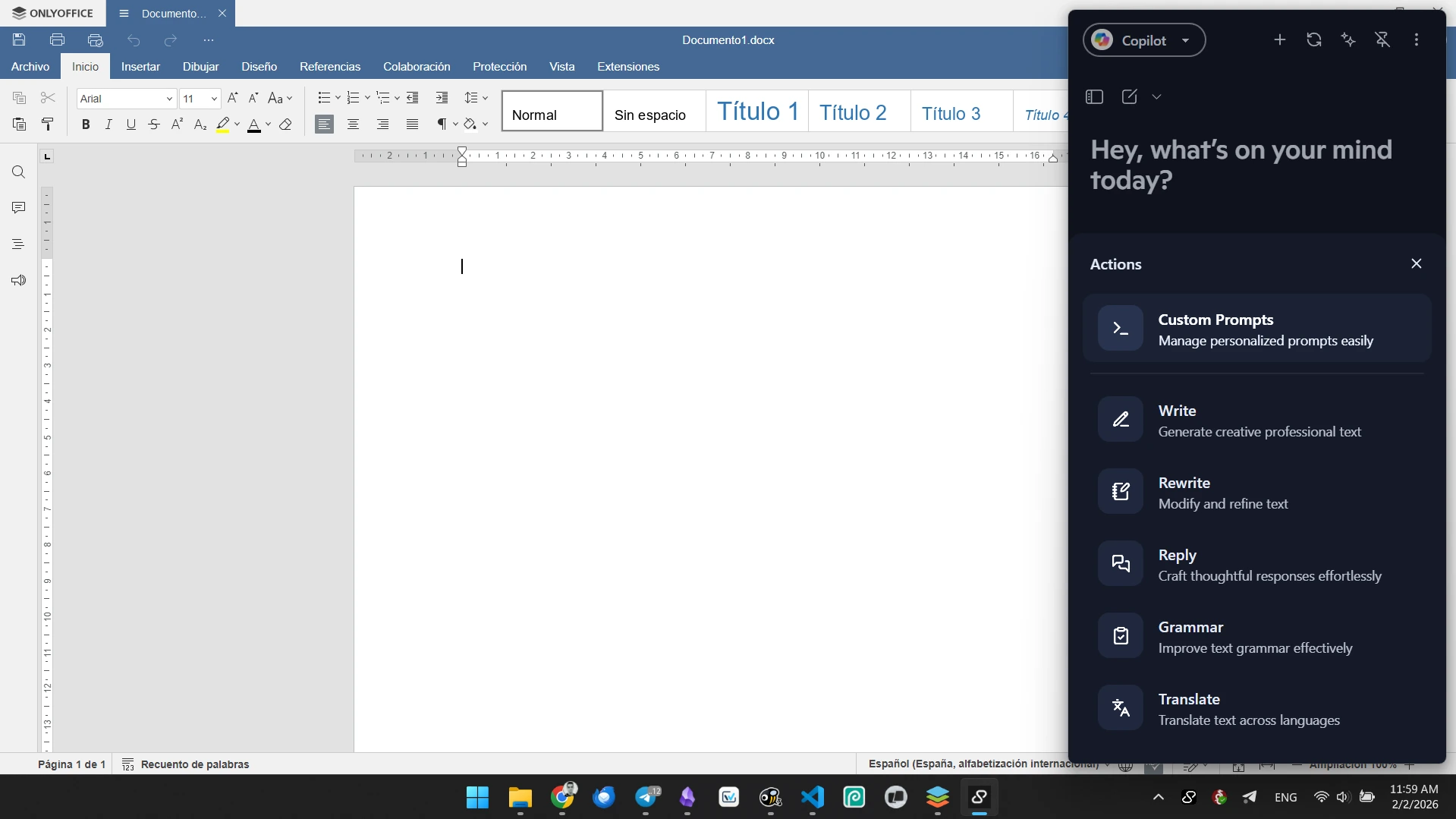
We designed Sidekickbar specifically to fill this gap. It isn’t just a replacement; it is a technical upgrade over what the native Copilot used to be.
- Quick setup: Download Sidekickbar for your system (we support Windows, macOS, and Linux).
- Instant summon: Use the global shortcut
Ctrl + Shift + A(orCmd + Shift + Aon Mac). The bar appears instantly on the right side of your screen. - Smart pinning: By clicking the “Pin” icon, Sidekickbar reserves its own screen real estate. Your other applications will automatically adjust so they aren’t hidden under the bar.
- Choose your brain: Even if you want the Copilot experience, you can toggle between ChatGPT, Claude , or Gemini within the same interface.
At a glance: Copilot App vs. Sidekickbar
| Feature | Microsoft Copilot App | Sidekickbar |
|---|---|---|
| Ease of use | High (Basic app) | Very High (Global shortcuts) |
| Platforms | Windows / macOS | Windows, macOS, Linux |
| Available AI | GPT | 30+ models (Claude, GPT, etc.) |
| Price | Free / Pro | Free / Pro tiers |
| Best for | Occasional queries | Quick Access |
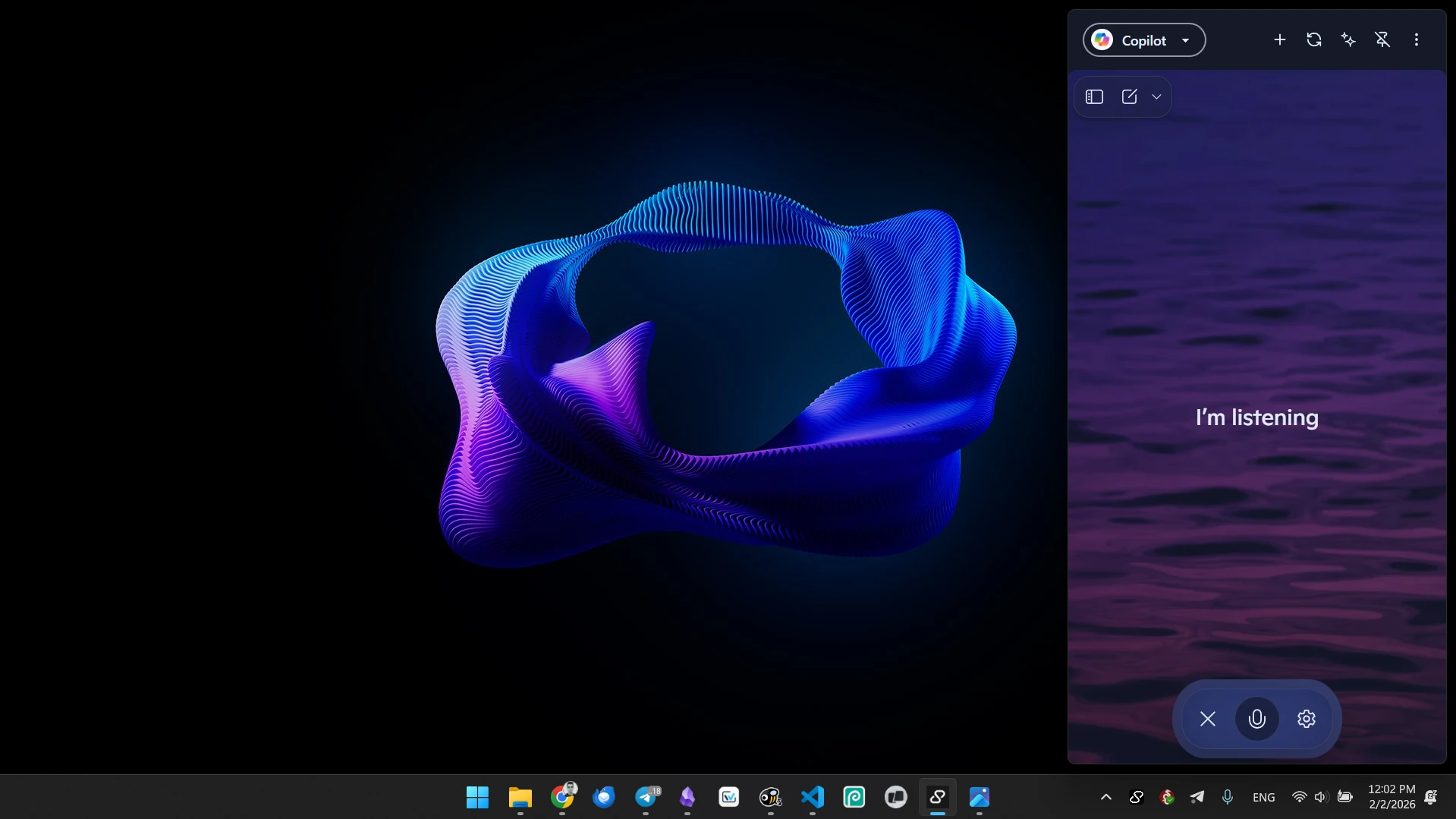
Why the Sidekickbar experience feels better
Months of testing with power users have shown us that AI is most useful when you don’t have to “go looking for it.”
- No overlaps: Unlike the Copilot app that floats over your files, Sidekickbar can “push” your open windows. This means you can read a PDF and chat with the AI without the chat covering the text.
- Contextual action: If you highlight text in any application and hit the shortcut, Sidekickbar pulls that text automatically. This is the integration Microsoft sacrificed when they decoupled the app from the OS.
- True speed: When using Claude 3.5 Sonnet through our sidebar, responses begin generating in milliseconds, often beating the latency found in the official Copilot web-app wrapper.
A note on limitations: While we miss the deep file-explorer integration Microsoft originally promised, Sidekickbar compensates by letting you drag and drop files directly into the bar for instant analysis—a workflow that is actually faster than the old Windows method.
Don’t settle for a broken workspace. Download Sidekickbar for free and get back the AI sidebar Microsoft took away.